

Prerequisites
- PostHog project with a workflow (or a new one)
- API key created in PNTA Dashboard (project API Keys page)
- Platform keys configured in PNTA Dashboard (see Platform Keys Setup)
- Devices registered via a PNTA client SDK, with the user ID stored in device metadata (e.g.
user_id)
Setup Steps
1. Add an HTTP Webhook Step
- In PostHog, open your workflow
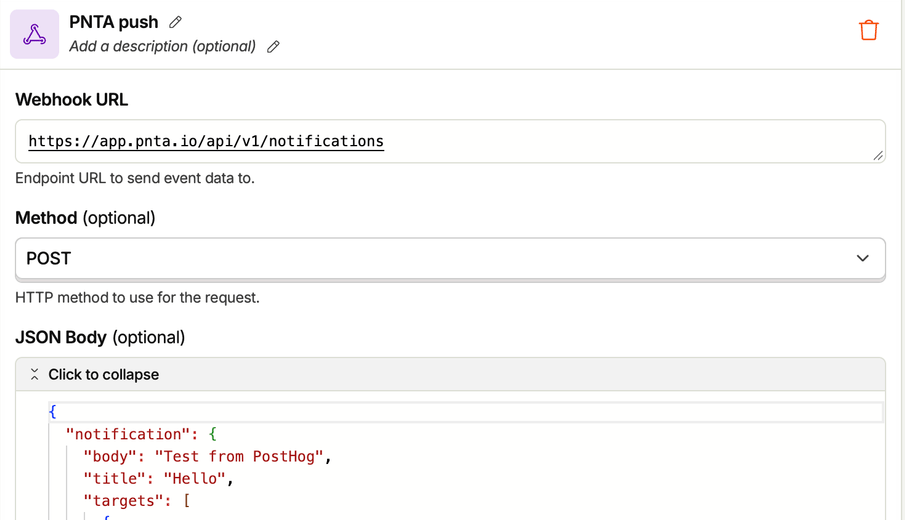
- Add an HTTP Webhook step
- Set the URL to
https://app.pnta.io/api/v1/notifications - Set the method to
POST
2. Set the Headers
- In Headers, add
Content-Type: application/json - In Secret headers, add
Authorization: Bearer <PNTA API key>
3. Set the JSON Body
user_id with the metadata key your app sets on devices. PostHog fills {event.distinct_id} from the event that triggered the workflow. link_to is optional. It sets what opens when the user taps the notification: an in-app route such as /orders/123 (a deep link), or a URL such as https://example.com. Your app handles the tap, see Flutter or React Native. For all body fields, see Send Notification.
Each entry in targets can be:
- A metadata match, such as
{ "metadata": { "user_id": "123" } }. PNTA sends to every active device whose metadata contains all the given keys and values. - A device ID, such as
"dev_V7pNZf2B" - A topic ID, such as
"top_..." - A raw device push token
4. Test and Enable
- In the HTTP Webhook step, turn on Log responses. The step logs then show the request body and the PNTA response.
- In the test panel, turn off mocking. If mocking is on, PostHog does not send the request.
- Run a test with an event whose
distinct_idis the user ID on your test device. Check that the push arrives on the device. - Turn off Log responses, then publish and enable the workflow. A draft workflow does not run.
Before PostHog identifies a user,
event.distinct_id is an anonymous ID and
matches no device. The metadata value on the device must match the
identified distinct_id. If your user ID is in a person property, use
{person.properties.<property>} instead.Troubleshooting
The step fails with401. The API key is wrong. Check the Authorization value in Secret headers.
The step fails with 422. The body is not valid, or no target matched a device or topic. The step logs show the PNTA error. “Delivery targets did not match any devices or topics” usually means the metadata key or value does not match the device.
PostHog does not retry a failed step. By default, the workflow continues to the next step.
Resources
PostHog Workflows
Learn more about PostHog workflows
API Reference
All body fields for sending a notification